Quick Answer
To build a clickable sales deck, start with one home slide that has big buttons for your main topics, such as problem, product, pricing and proof. Group your slides into sections, link every button to its section, and add a "Back to Home" button on each one. Hide backup slides but link to them. Then test the deck in slide show mode on a real screen share, and train reps with a short practice run. In PowerPoint or Google Slides, this takes about one full working day. Keep the deck simple so reps can click without thinking while buyers talk.
Table of Contents
- Introduction
- What Is a Clickable Sales Deck?
- Step-by-Step: How to Build One
- Free and Paid Tools
- Problems You Will Face
- Shubham's Hacks
- With the Hack and Without It
- Conclusion
- FAQs
- About PitchWorx
Introduction
Picture this: a buyer asks, "Can you show me pricing?" Your rep scrolls through 40 slides while everyone waits. The mood drops, and the buyer starts checking email.
Most sales decks are built to be read in a straight line, but live calls never go in a straight line. Buyers jump around, and good reps need to follow them. Salesforce research found that reps spend less than 30% of their time actually selling, so every wasted minute matters. A clickable deck fixes this problem. This guide shows you how to build one, step by step, in simple words.
What Is a Clickable Sales Deck?
A clickable sales deck works like a small website. It has a home slide with buttons, and each button jumps to a section. Reps can go to any topic in one click and return home just as fast. The deck still has a clear story, but the rep chooses the path based on what the buyer cares about.
Step-by-Step: How to Build One
Step 1: List the questions buyers ask: Write down the top five. Most teams hear the same ones: What does it do? How much does it cost? Who else uses it? How do we start? What about security?
Step 2: Create a home slide: Add one button for each question. Use big, clear labels like "Pricing" or "Customer Results." Five to six buttons is the limit: Add a short line under each button, so buyers know exactly what to expect.
Step 3: Group slides into sections: Put all pricing slides together, all proof slides together, and so on. In PowerPoint, use Home > Section to organize them.
Step 4: Add the links: In PowerPoint, select a button, choose Insert > Link, and pick the slide. You can also use action buttons or the Zoom feature, which makes clickable slide thumbnails. In Google Slides, select the button, press Ctrl+K and choose "Slides in this presentation."
Step 5: Add "Back to Home" buttons: Place the same button in the same corner on every section. Reps should never have to think about where it is.
Step 6: Link your backup slides: Hide extra slides, such as security details or competitor comparisons, then link to them from a button. They stay out of the normal flow but are ready when needed.
Step 7: Test it live: Open slide show mode and click every button. Then test over a real screen share, because lag and different screen sizes can change how links behave. Also test on a laptop and a phone if buyers may open the file.
Step 8: Train your reps. Run a 10-minute practice session. Ask a rep to answer five random buyer questions using only the buttons.
Free and Paid Tools
Free options
- Google Slides: Link any text, shape or image to another slide. Simple and shareable.
- Pitch (free plan): A modern tool with templates and branded sharing links.
- Prezi** (Basic plan):** Offers a free plan with limits on slide count and a watermark.
Paid options
- Microsoft 365 PowerPoint: Best for action buttons and Zoom links.
- Pitch, Prezi and Canva paid plans: Add brand controls and team features. Plans often start around $10 to $20 per user each month, but prices change, so check current rates.
- Sales enablement platforms: Tools built for larger teams to track content and viewer activity.
For a polished result, many teams hire Interactive Presentation design services instead of building everything in-house.
Problems You Will Face
- Broken links: If you move or delete a slide, links can break. Test every button after each edit.
- Too many buttons: More choices slow reps down. Keep each slide to two or three actions.
- Google Slides limits: Links work only inside the same deck, so keep everything in one file.
- Version chaos: Reps copy decks and edit them. Share one master file and lock it.
- Hidden slide leaks: Exported PDFs can show hidden slides. Check before you send.
- Weak design: Tiny buttons are hard to click on a shared screen. A skilled Ppt design agency can make navigation clean and obvious.
Shubham's Hacks
Shubham, a PitchWorx design expert, shares three simple hacks:
- Use one "home base" slide: Keep the same layout, buttons and order every time, so reps build muscle memory.
- Use slide numbers as shortcuts: In slide show mode, type a slide number and press Enter to jump straight to it. Put numbers on your cheat sheet.
- Make buttons big: If you cannot read a button from across a room, it is too small for a shared screen.
With the Hack and Without It
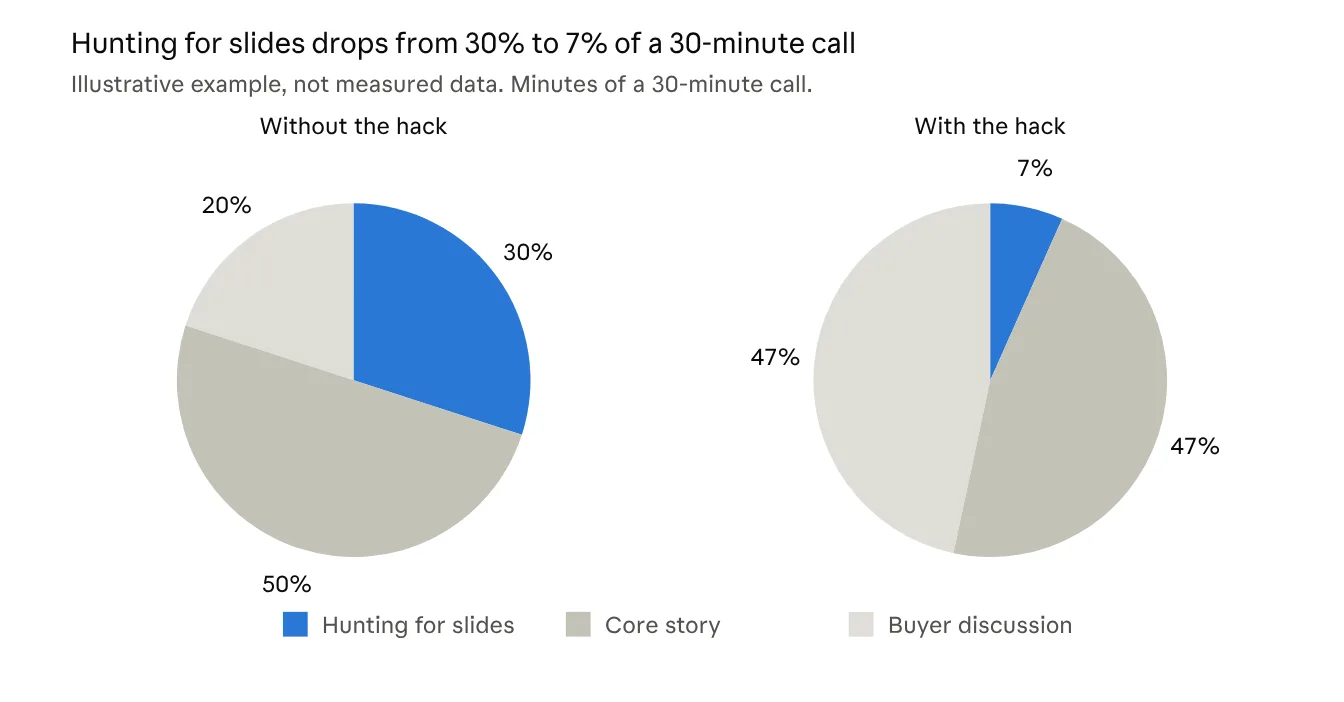
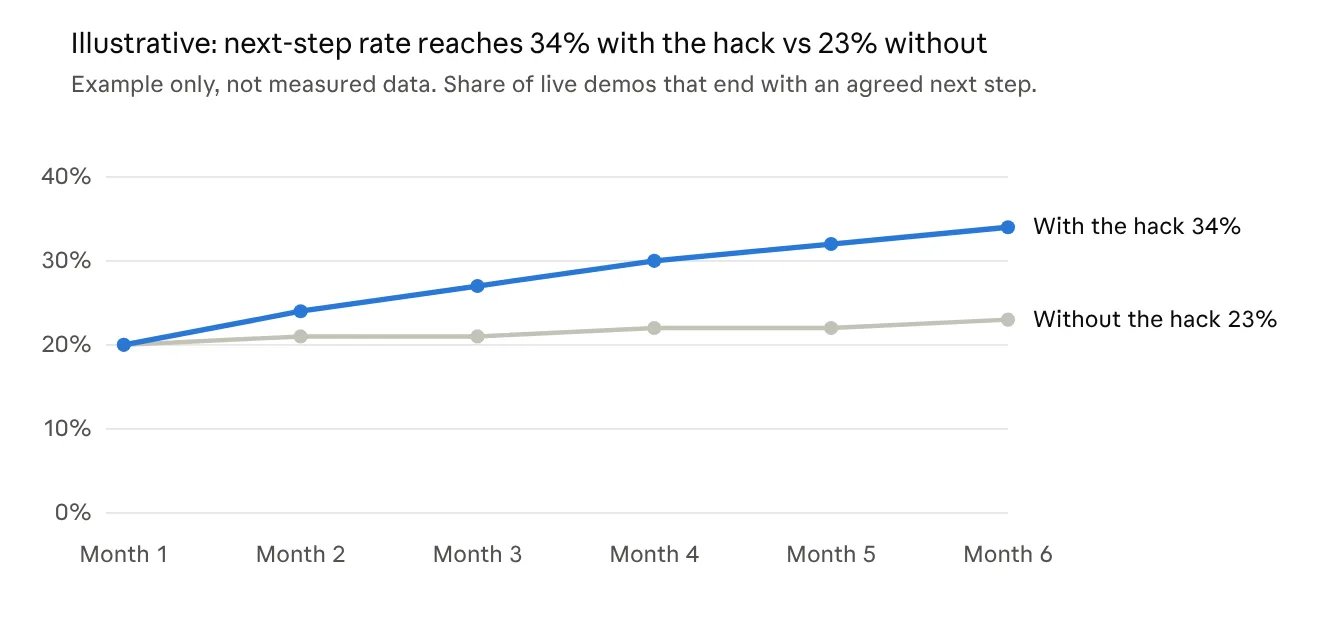
The charts below are an illustrative example, not measured data. The first shows how a 30-minute call might be spent. The second shows how demo-to-next-step rates could grow over six months.
Conclusion
A clickable sales deck gives reps speed, confidence and control. Start with a home slide, link your sections, test everything, and practice. Small changes like big buttons and a consistent "Back to Home" make a big difference. If you want extra polish, a trusted Ppt design agency can turn your plan into a smooth, branded deck. If you want it built for you, Interactive Presentation design services can handle the links, layouts and testing, so your team can focus on selling.
FAQs
1. What is a clickable sales deck?
It is a presentation with buttons and links, so reps can jump to any topic in one click.
2. Can I build one in PowerPoint?
Yes. Use Insert > Link, action buttons or zoom to connect your slides.
3. Does Google Slides support clickable navigation?
Yes. Select any object, press Ctrl+K and choose a slide in the same presentation.
4. How many slides should it have?
There is no fixed number. Keep the main story short and put extra detail in linked backup slides.
5. How long does it take to build?
A simple version takes about a day, plus time to test and train your reps.
About PitchWorx
PitchWorx is a presentation and graphic design subscription company trusted since 2012. As a Ppt design agency, PitchWorx builds sales decks, pitch decks and templates in 100+ formats, and its Interactive Presentation design services include clickable menus, navigation buttons and live-ready layouts. The Creative Assist plan starts at $699 per month with unlimited requests and editable source files. Visit pitchworx.com to start a 7-day trial.